Do Hidden Photos Sync to iCloud? Where a Hidden Photo Still Goes
Hiding a photo changes where it shows, not where it is stored.
Published November 12, 2026 · Updated November 12, 2026

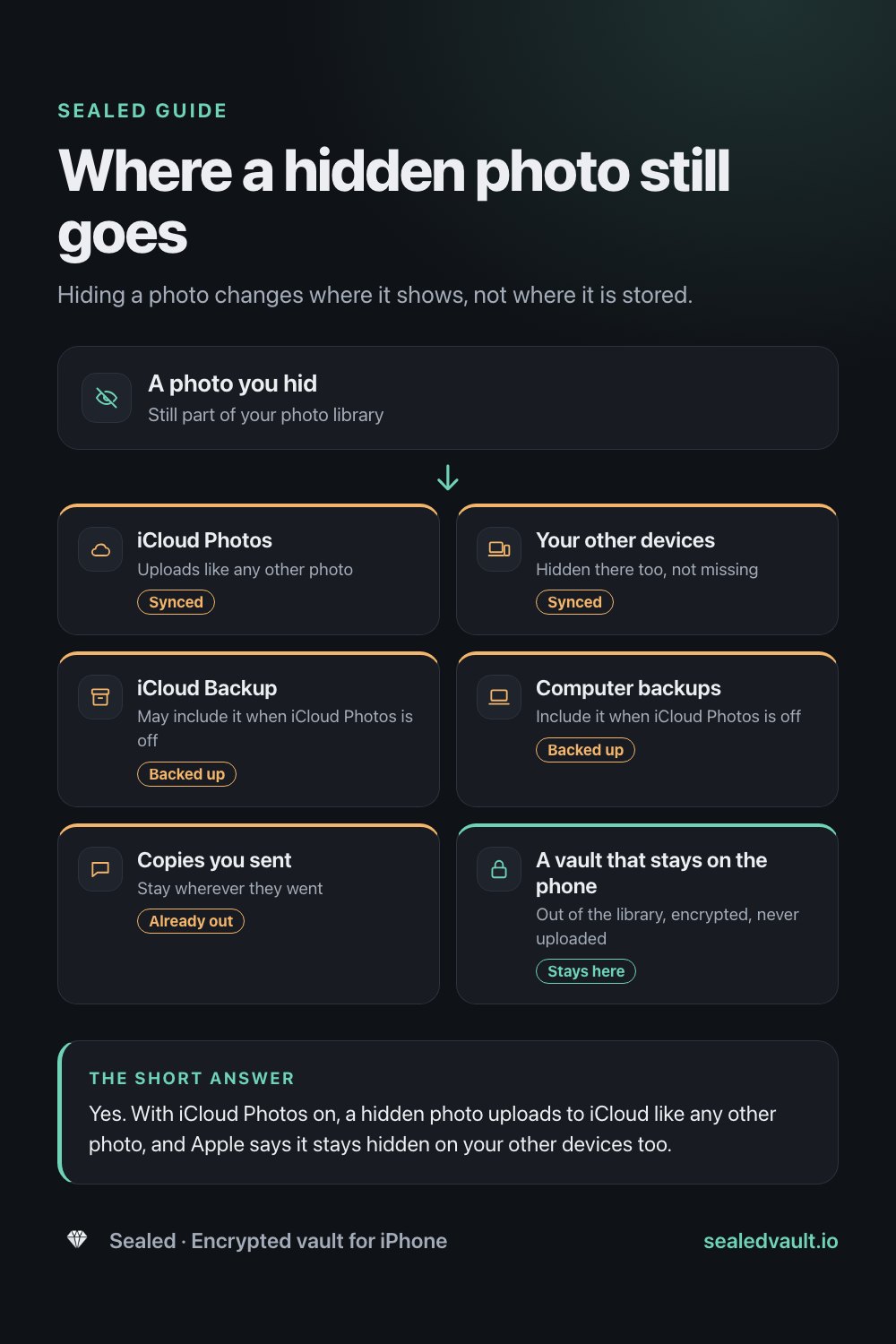
Yes. With iCloud Photos on, a hidden photo uploads to iCloud like any other photo, and Apple says it stays hidden on your other devices too. With iCloud Photos off, iCloud Backup may include it instead. Hiding only changes where the photo appears, so to keep it off iCloud it has to leave your photo library.
Why people ask this
You hid a photo so it would stop showing up. Then you wondered whether it is still sitting in iCloud, on your iPad, or on the family Mac. That is the right question to ask, because hiding and syncing are separate things on iPhone, and most people assume the first switches off the second.
This page follows a hidden photo through every setting that matters: iCloud Photos on or off, iCloud Backup, computer backups, shared libraries and copies you sent. Then it covers how iCloud encrypts that photo and what it takes to keep one off iCloud for good.
What hiding changes, and what it does not
When you hide a photo, Apple moves it to the Hidden album so it no longer appears in your library, other albums or the Photos widget. Since iOS 16 the Hidden album is locked by default and opens with Face ID, Touch ID or your passcode. In Settings, then Apps, then Photos, you can also turn off Show Hidden Album so the album does not appear at all.
What hiding does not change is where the photo is stored. It stays in your photo library. Apple's own support page says that if you use iCloud Photos, the photos you hide on one device are hidden on your other devices too. That can only happen because the photo, and its hidden status, sync to them.
Where a hidden photo goes, setting by setting
Here is where the same hidden photo ends up depending on how your iPhone is set up.
| Your setup | Where the hidden photo is | What Apple says |
|---|---|---|
| iCloud Photos on | In iCloud and on every device signed in with iCloud Photos on | Photos you hide on one device are hidden on your other devices too. |
| iCloud Photos off, iCloud Backup on | On the phone, and possibly inside your iCloud Backup | iCloud Backup may include the photos and videos in your library if iCloud Photos is off. |
| iCloud Photos off, backup to a computer | On the phone and in the computer backup | A computer backup includes almost all of the device's data, except data already synced to iCloud, like iCloud Photos. |
| iCloud Photos on, backup to a computer | In iCloud, not in that computer backup | Data already synced to iCloud is left out of computer backups. |
| Photo sent or shared before you hid it | Wherever it went | Hiding affects only your own library. |
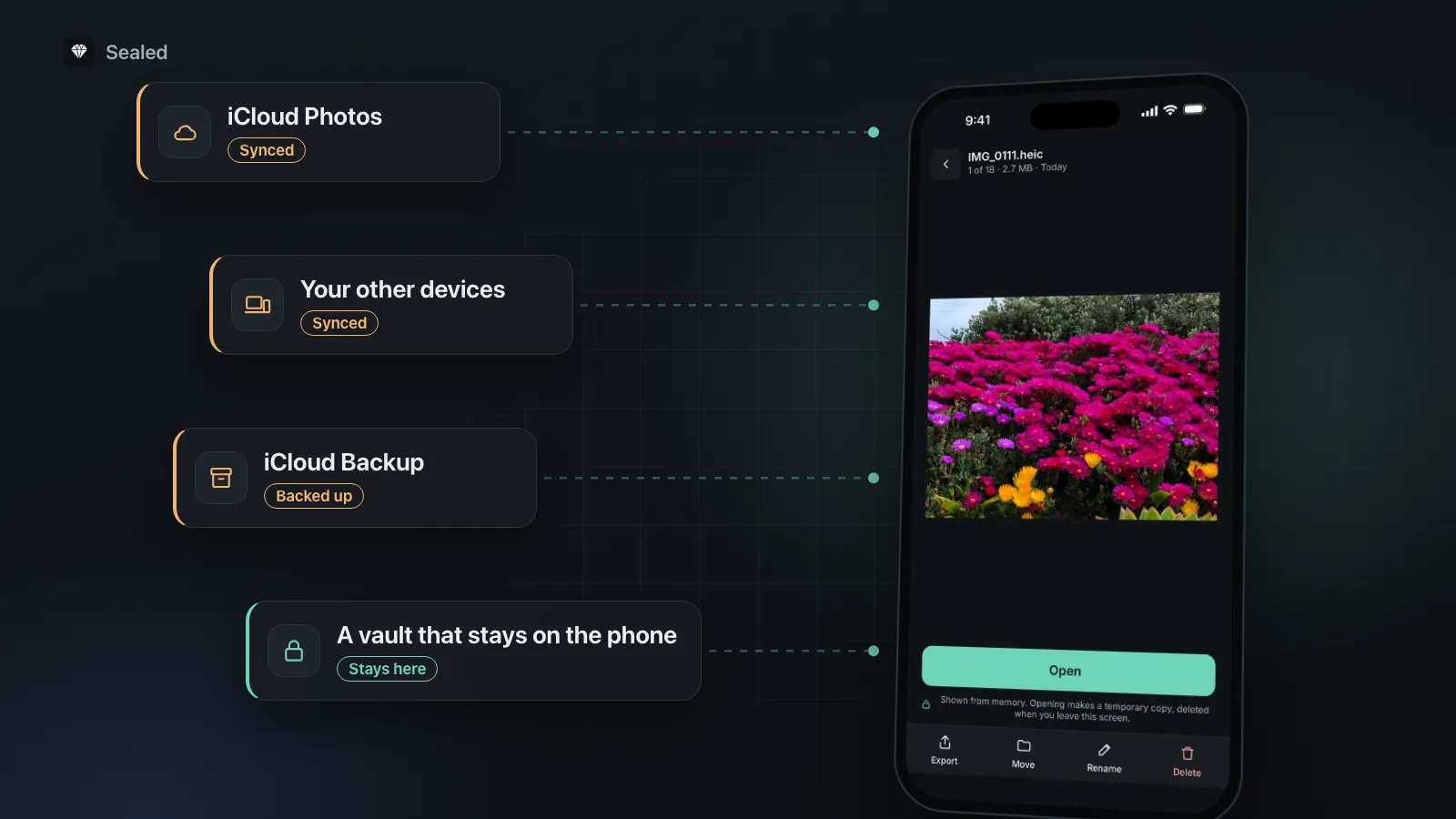
- iCloud PhotosUploads like any other photoSynced
- Your other devicesHidden there too, not missingSynced
- iCloud BackupMay include it when iCloud Photos is offBacked up
- Computer backupsInclude it when iCloud Photos is offBacked up
- Copies you sentStay wherever they wentAlready out
- A vault that stays on the phoneOut of the library, encrypted, never uploadedStays here
Shared albums and shared libraries
A photo you posted to a shared album before hiding it stays in that album until you delete it there, and anyone who saved it to their own library keeps that copy. Shared albums also sit outside Advanced Data Protection, as the next section explains.
How iCloud protects a hidden photo
Apple publishes this in its iCloud data security overview. With the default setting, Standard Data Protection, Photos and iCloud Backup are encrypted in transit and on Apple's servers, and Apple holds the keys so it can help you recover your data. They are not end-to-end encrypted.
If you turn on Advanced Data Protection, Photos and iCloud Backup become end-to-end encrypted, with the keys kept on your trusted devices. Apple notes two limits worth knowing:
- Some details stay under standard encryption even with Advanced Data Protection on. For Photos, Apple's list includes whether an item has been marked as a favorite, hidden or deleted. The photo is end-to-end encrypted; the fact that you hid it is not.
- The Shared Albums feature in Photos does not support Advanced Data Protection, so photos in a shared album are not end-to-end encrypted.
Worth knowing
Hiding a photo never adds encryption. A hidden photo gets exactly the same iCloud protection as every other photo in your library, under whichever data protection setting your account uses.
How to keep a hidden photo off iCloud
Because hiding does not stop syncing, and Apple's documentation describes no way to exclude one album, the reliable route is to take the photo out of your library and then make sure the deletion reaches iCloud.
- Put the photo somewhere you control first, such as a vault app that keeps files only on the phone and really encrypts them, and open it there to check it worked.
- In Photos, open the Hidden album (Collections, then Hidden under Utilities, then View Album), select the photo and delete it.
- Open Recently Deleted under Utilities, tap View Album and unlock it, select the photo, tap the More button, tap Delete and confirm Delete from All Devices.
- Let your other devices go online so the deletion syncs to them. A device that stays offline keeps the photo until it syncs.
- Check the copies hiding cannot reach: shared albums, messages you sent, and older computer backups made while the photo was in your library.
Our step-by-step guide to moving photos to a vault and removing every copy covers the same routine for many photos at once, including what to do when the Delete button is gray because a photo was synced from a computer.
Why turning off iCloud Photos is rarely the answer
Switching off iCloud Photos sounds like the obvious fix, but it works on the whole library, not on one photo, and it has side effects. To turn it off for one iPhone, go to Settings, tap your name, tap iCloud, tap Photos under Saved to iCloud and turn off Sync this iPhone. Apple then lets you download a copy of the library to the phone or remove the photos from the phone.
- Turning it off on one device only stops syncing for that device. The photos already in iCloud stay there for your other devices.
- Apple's account-wide option, Turn Off and Delete Photos, removes your library from iCloud 30 days after you stop using the service.
- With iCloud Photos off, iCloud Backup may start including your library, so the hidden photo can return to iCloud inside a backup.
- If you turn off iCloud Backup for a device, Apple keeps existing backups for 180 days before deleting them.
For one private photo, removing that photo from the library is simpler and keeps everything else as it was.
When syncing is fine
None of this means hidden photos in iCloud are a problem for everyone. If you are the only person who uses your Apple devices, nobody else knows your passcodes, and you are comfortable with Apple's encryption (or have Advanced Data Protection on), the Hidden album plus iCloud Photos is a reasonable setup. It keeps photos out of casual view and backed up. When that is enough, and when it is not, is covered in is the Hidden album private.
It stops being fine when another person uses one of your synced devices, when someone knows your passcode, or when you want a photo to exist on one phone only. Scans of passports and IDs are the most common example, covered in how to store passport and ID scans. Our Hidden album comparison sets out both sides.
Where Sealed fits
Sealed is built for that last case. A photo you import is encrypted on your iPhone with its own key before it is saved, and nothing is uploaded: there is no account, no server and no sync. The vault's folder is excluded from iCloud and computer backups. After import, Sealed can ask iOS to delete the originals from Photos, and iOS shows its own confirmation before it does. Photos and videos you take with the camera inside Sealed never touch your library, so there is nothing for iCloud Photos to pick up. The encryption page explains the details.
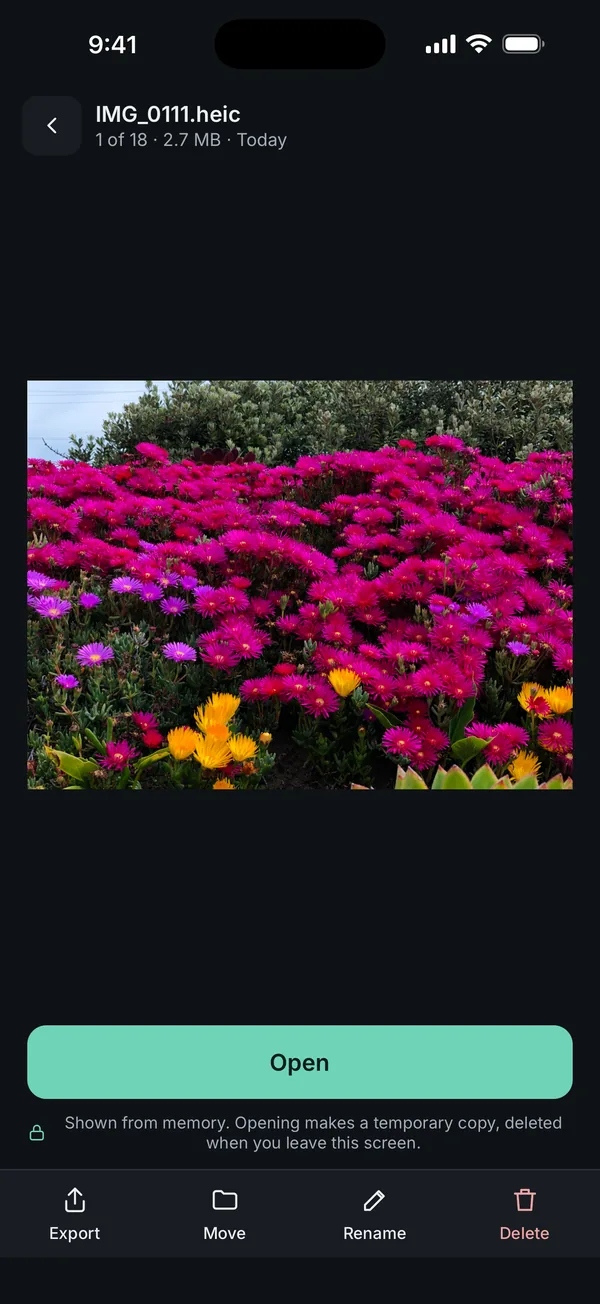
What it does not do: moving a photo into Sealed does not reach copies already in older backups or copies you sent to other people. And a vault with no cloud copy has no copy anywhere else, so if you lose the phone, the vault goes with it. Sealed can make an encrypted backup file, protected by a backup password, that you keep wherever you choose. Sealed is paid, at $1.49 a week or $49.99 once (US prices, local price shown in the app), and works on iPhone only.
Frequently asked questions
Can I stop only the Hidden album from syncing to iCloud?
Apple's documentation describes no setting for that. iCloud Photos syncs the whole library, and Apple says photos you hide on one device are hidden on your other devices too, which means they sync. To keep one photo out of iCloud, it has to leave the library: delete it, or move it into an app that stores files only on the phone.
Are hidden photos included in my iCloud Backup?
Only when iCloud Photos is off. Apple says that if you have not turned on iCloud Photos, iCloud Backup may include the photos and videos in your library. When iCloud Photos is on, your photos sync to iCloud instead and are not duplicated in the daily backup. Either way, a hidden photo ends up in iCloud if you use one of the two.
If I delete a hidden photo, is it deleted from iCloud too?
Yes, with iCloud Photos on. Apple says deleting a photo on one device deletes it everywhere you use iCloud Photos. It first goes to Recently Deleted for 30 days. To remove it sooner, open Recently Deleted, select the photo, tap Delete and confirm Delete from All Devices.
Does Advanced Data Protection keep my hidden photos away from Apple?
It end-to-end encrypts Photos and iCloud Backup, so Apple does not hold the keys to the images. Apple lists a few details that stay under standard encryption, and one of them is whether an item is marked as hidden. The photo is protected, but the hidden flag is not. Shared Albums do not support Advanced Data Protection at all.
Will turning off iCloud Photos remove my hidden photos from iCloud?
Not on its own. Turning it off on one iPhone stops syncing for that device, and the photos already in iCloud stay there for your other devices. Apple's account-wide option, Turn Off and Delete Photos, deletes them from iCloud 30 days after you stop using the service. And with iCloud Photos off, iCloud Backup may start including your library.
Do hidden photos appear on my iPad or Mac?
Yes, if those devices use iCloud Photos with the same Apple Account. Apple says photos you hide on one device are hidden on your other devices too, so they are there, just in the Hidden album. On a Mac, Apple says that album is off by default and unlocks with Touch ID or your login password, so anyone using that Mac account can reach it.
Summary
- Hidden photos sync with iCloud Photos exactly like any other photo, and stay hidden on your other devices.
- With iCloud Photos off, they can still reach iCloud inside your iCloud Backup.
- Hiding adds no encryption, and under Advanced Data Protection the hidden flag itself stays under standard encryption.
- To keep a photo off iCloud, take it out of the library, empty it from Recently Deleted, and check the copies you already shared.
Sources
- Apple Support: Hide photos on your iPhone, iPad, Mac, or Apple Vision Pro with the Hidden album
- Apple Support: What does iCloud back up?
- Apple Support: iCloud data security overview
- Apple Support: Backup methods for iPhone or iPad
- Apple Support: How to turn off iCloud Photos
- Apple Support: Delete photos on your iPhone or iPad