How to Move Photos to a Vault on iPhone and Remove Every Copy
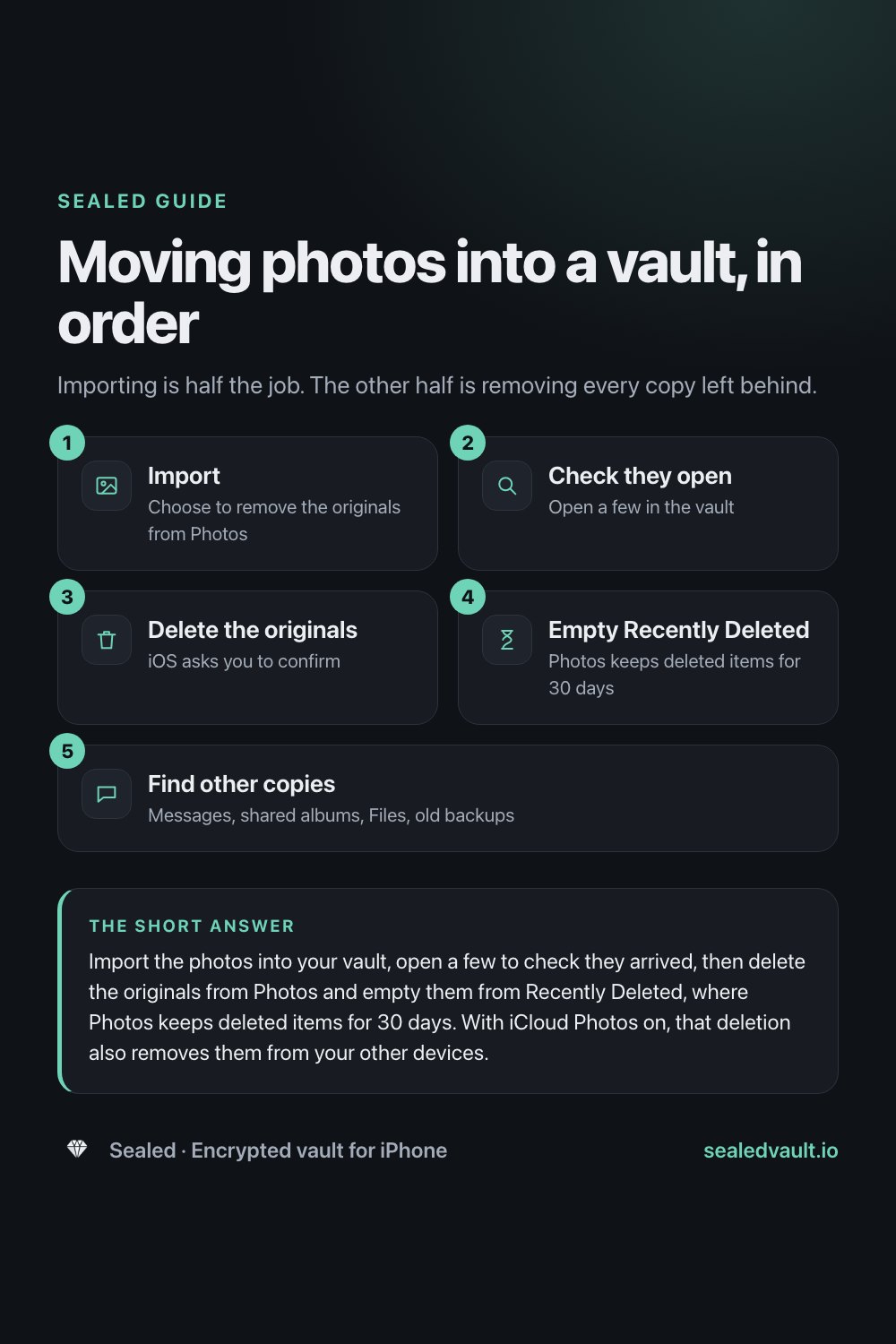
Importing is half the job. The other half is removing every copy left behind.
Published November 12, 2026 · Updated November 12, 2026

Import the photos into your vault, open a few to check they arrived, then delete the originals from Photos and empty them from Recently Deleted, where Photos keeps deleted items for 30 days. With iCloud Photos on, that deletion also removes them from your other devices. Finish by checking the places copies hide: messages, shared albums, Files and older backups.
Moving is two jobs, not one
Getting photos into a vault takes a minute. Making sure they are no longer anywhere else takes a little more thought, and it is the part most people skip. A photo you import is copied into the vault. The original stays in Photos until you delete it, then sits in Recently Deleted for another 30 days, and with iCloud Photos on it also lives in iCloud and on your other devices until that deletion syncs.
This guide walks through both jobs in order: the import, then the cleanup. It also covers the cases that trip people up, such as photos synced from a computer, shared libraries and copies you sent months ago.
What actually happens to a photo when you move it
It helps to know where each copy lives before you start.
- The vault copy: a good vault encrypts the photo when it is imported, so the copy inside the app is unreadable without your passphrase.
- The original in Photos: untouched by the import. It stays in your library, and in iCloud if you use iCloud Photos, until you delete it.
- Recently Deleted: Apple says deleted photos stay in this album for 30 days before they are permanently deleted. You can empty it sooner.
- Your other devices: with iCloud Photos on, Apple says deleting a photo on one device deletes it on all devices signed in with the same Apple Account.
Hiding a photo would not have helped with any of this, because hidden photos still sync to iCloud and stay in your library.
Before you start: check the vault
Once the originals are gone, the vault copy is the only copy. Spend two minutes making sure it deserves that trust.
- It really encrypts. Some vault apps only put a PIN screen in front of ordinary files. Our checklist for whether a photo vault really encrypts shows what to look for.
- You know where it stores files. If the app uploads to its own cloud, you are moving photos from one cloud to another. If it stores them only on the phone, think about how you would recover them if the phone is lost.
- You can get files back out. Make sure the app can export to the share sheet, so you are never locked in.
- You have a recovery plan. Know what happens if you forget the passphrase before you depend on it.
Step by step: move the photos, then remove the originals
- Open your vault and create a folder for the photos you are moving, so they are easy to check afterward.
- Import the photos from your library. If the app offers to remove the originals from Photos after import, turn that on.
- Open several of the imported photos and play any videos in the vault to confirm they arrived complete.
- Delete the originals from Photos if the app did not do it for you. With iCloud Photos on, this removes them from your other devices too.
- In Photos, tap Collections, then Recently Deleted under Utilities. Tap View Album, unlock it, tap Select, choose the photos, tap the More button, tap Delete and confirm.
- Go through the places copies hide, listed in the table below, and remove what you find.
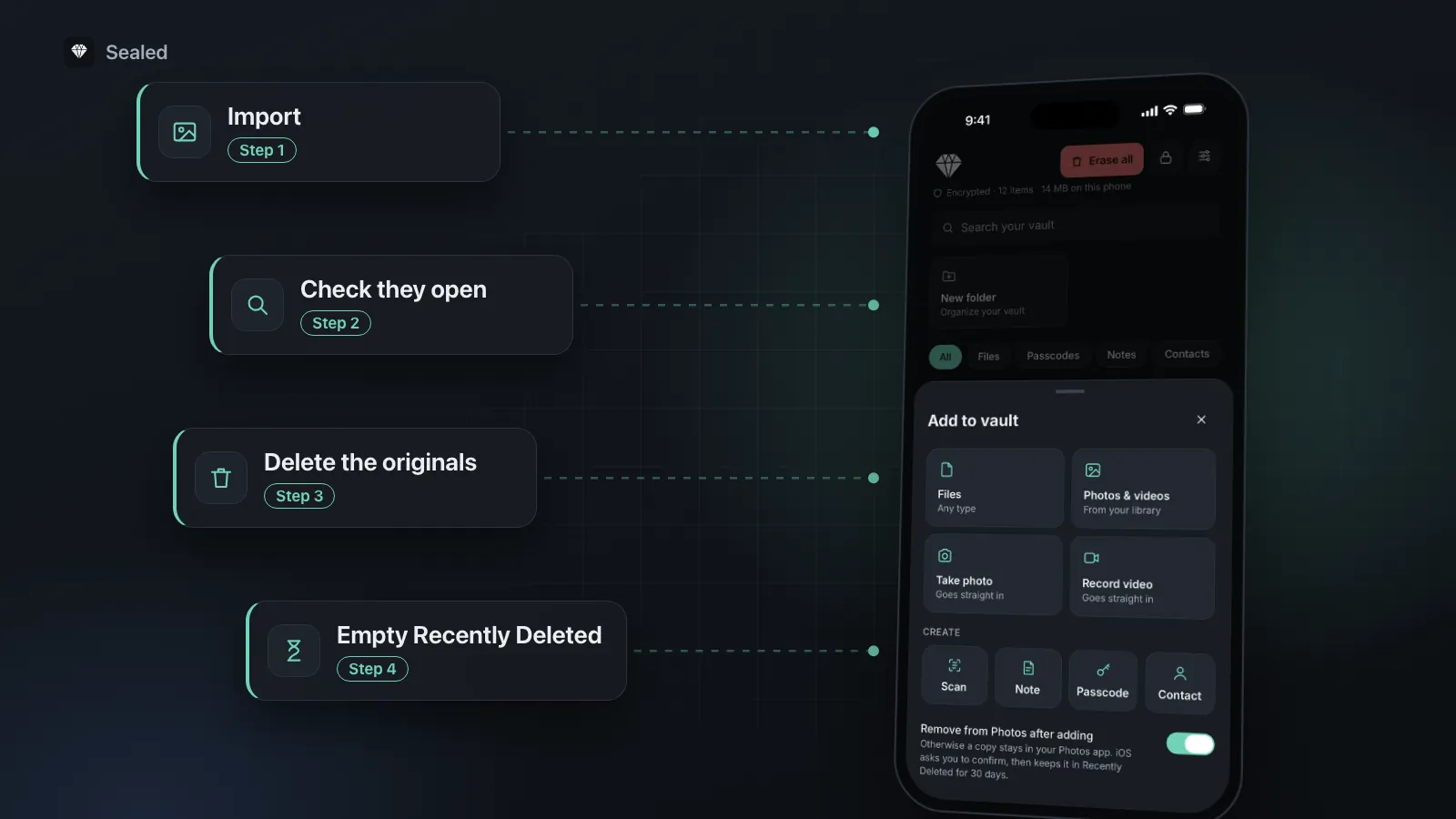
- 1ImportChoose to remove the originals from Photos
- 2Check they openOpen a few in the vault
- 3Delete the originalsiOS asks you to confirm
- 4Empty Recently DeletedPhotos keeps deleted items for 30 days
- 5Find other copiesMessages, shared albums, Files, old backups
If the Delete button is gray
Apple says photos added to your iPhone by syncing with a computer cannot be deleted in the Photos app on the phone. Stop syncing those photos from the computer, and remember that the computer still holds its own copy.
If the photos are in the Hidden album
Hidden photos stay in your library, so they need the same cleanup. If a photo you hid does not show up when you pick photos to import, unhide it first (Collections, then Hidden, then View Album, then touch and hold the photo and tap Unhide), import it, then delete the original.
If you use a Shared Library
Apple says anyone in an iCloud Shared Photo Library can delete items, but only the person who added a photo can permanently delete it from Recently Deleted. If someone else added the photo, they have to finish the deletion.
Places copies hide
Deleting the originals in Photos does not reach copies made before you started. These are the usual ones.
| Where | Why a copy is there | What to do |
|---|---|---|
| Messages and chat apps | Photos you sent or received stay in the conversation | Delete them from the thread. The other person's copy is beyond your reach. |
| Shared albums | Apple says people you share with can save items to their own library | Delete the photo from the album. Saved copies stay with whoever saved them. |
| Files and Downloads | Screenshots, exports and photos saved from email or the web | Browse Downloads and recent files in the Files app and delete what you moved. |
| Photos you emailed yourself or others | Delete the messages, including from Sent. | |
| A computer | Photos synced or imported to a Mac or PC, and computer backups | Apple says a computer backup includes almost all of the device's data, except what is already in iCloud Photos. Delete old backups you no longer need. |
Test your way back out
A vault you cannot get files out of is a trap. Before deleting anything you cannot replace, export one photo from the vault through the share sheet and open it in another app. In Sealed you can export one file, a selection or a whole folder this way. The decrypted copies Sealed makes for sharing are removed as soon as the share sheet closes, so only the copy you sent or saved remains.
Then protect the vault
Moving photos into a vault only helps if the vault is locked well.
- Use a passphrase, not a short PIN. Passphrase, PIN or Face ID explains why the difference matters.
- Set the vault to lock as soon as you leave the app.
- Make a recovery key and store it away from the phone. How the recovery key works covers this.
- Decide how you will survive losing the phone, for example with an encrypted backup file kept somewhere else.
Where Sealed fits
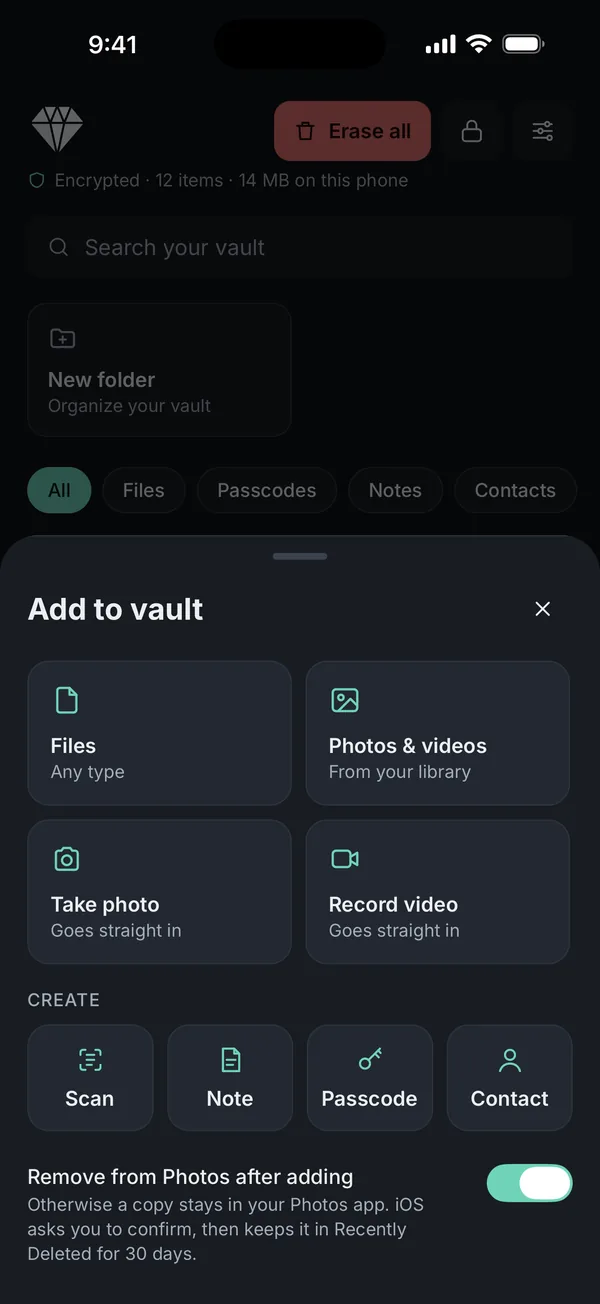
Sealed does the import and the first round of cleanup together. In the Add menu, Photos & videos opens the iOS photo picker, so Sealed only receives the photos you select. Each one is encrypted on the phone with its own key, and the temporary plain copy is deleted as soon as it is encrypted. Photos keep their original format, such as HEIC, unless you turn on Storage saver to keep smaller versions.
The switch at the bottom of the menu, Remove from Photos after adding, is on by default. After the import, Sealed asks iOS to delete only the originals that made it into the vault, and iOS shows its own confirmation first. This is the one moment Sealed asks for photo library access. If you decline, the originals stay in Photos and the vault copies are kept either way. Photos you take or videos you record from inside Sealed go straight into the vault and never reach your library.
Sealed does not empty Recently Deleted for you, and it cannot reach copies in messages, shared albums or backups. It stores everything on one iPhone with no cloud copy, and it is paid: $1.49 a week or $49.99 once (US prices, local price shown in the app). If you are moving documents rather than photos, storing passport and ID scans applies the same routine to IDs.
Frequently asked questions
Does moving photos to a vault delete them from iCloud?
Only once the originals are deleted from Photos. Importing makes a copy in the vault and leaves the original where it was. When you delete the original with iCloud Photos on, Apple says it is deleted on every device using iCloud Photos. It then sits in Recently Deleted for 30 days unless you delete it from there too.
Why can't I delete some photos after importing them?
Apple says photos added to your iPhone by syncing with a computer cannot be deleted directly in the Photos app, and the Trash button may be gray. You have to stop syncing those photos from the computer instead. Remember that the computer still has its own copy, so remove it there as well if you want it gone.
Do I have to give a vault app access to my whole photo library?
Not for importing. Sealed uses the iOS photo picker, so it only receives the photos you select. It asks for photo library access only when it removes the originals for you, because iOS requires that permission to delete. If you decline, the photos stay in the vault and the originals stay in Photos for you to delete yourself.
Will the photos lose quality when I move them?
In Sealed, no by default. Photos are imported in their original format, such as HEIC, and videos are passed through as they are. Only if you turn on Storage saver does Sealed keep smaller versions to save space. Open a few photos in the vault before deleting the originals, so you can see the result for yourself.
What happens to my photos if I delete the vault app?
Apple says deleting an app removes it and its data from your iPhone. For a vault that stores everything on the phone, like Sealed, that means the encrypted files go with it, and Sealed's vault is not in iCloud or computer backups. Export the photos or make an encrypted backup file before you delete the app.
Should I hide the photos instead of moving them?
Hiding is quicker but does far less. A hidden photo stays in your library, opens with your iPhone passcode, and still syncs with iCloud Photos to your other devices. Moving it into an encrypted vault and deleting the original takes it out of the library entirely. Which one you need depends on who you are keeping it from.
Summary
- Import, check the photos open, then delete the originals. Do not delete first.
- Empty Recently Deleted, or the originals stay recoverable for 30 days.
- With iCloud Photos on, deleting the originals removes them from your other devices too, which is what you want.
- Check messages, shared albums, Files, Mail and computers for copies made earlier.
- Lock the vault well and plan for losing the phone before you rely on it.